This is default featured slide 1 title

Go to Blogger edit html and find these sentences.Now replace these sentences with your own descriptions.This theme is Bloggerized by Lasantha Bandara - Premiumbloggertemplates.com.

This is default featured slide 2 title

Go to Blogger edit html and find these sentences.Now replace these sentences with your own descriptions.This theme is Bloggerized by Lasantha Bandara - Premiumbloggertemplates.com.

This is default featured slide 3 title

Go to Blogger edit html and find these sentences.Now replace these sentences with your own descriptions.This theme is Bloggerized by Lasantha Bandara - Premiumbloggertemplates.com.

This is default featured slide 4 title

Go to Blogger edit html and find these sentences.Now replace these sentences with your own descriptions.This theme is Bloggerized by Lasantha Bandara - Premiumbloggertemplates.com.

This is default featured slide 5 title

Go to Blogger edit html and find these sentences.Now replace these sentences with your own descriptions.This theme is Bloggerized by Lasantha Bandara - Premiumbloggertemplates.com.

Tampilkan postingan dengan label Tips&Trik. Tampilkan semua postingan

Jumat, 17 September 2021

code Hack Safelinku


 <script>

function popup() {

var url = "https://tokoanita114.blogspot.com/";

window.open(url);

popWin = window.open(page,'popWin');

popWin.blur();

window.focus();

}

popup();

</script>


JiKA KALIAN BELUM PUNYA ACOUNT SAFELINKU SILhkan register disini 

atau gunakan lik ref saya https://safelinku.com/ref/ANDRIBOY114

CATATAN ; HARAP GANTI LINK ( https://tokoanita114.blogspot.com) dengan link kalian. dan saat menggunakan link ini gunakan VpN supsys hssilnya maksimal, GOODLUCK

Rabu, 22 Mei 2019

Cara Mengunci Desktop Windows 10 Menggunakan Password


Ketika Anda membuat local user account atau pengguna lokal saat menginstall Windows 10 atau saat membuat akun baru, Windows akan menanyai apakah Anda ingin mengatur password untuk akun tersebut. Namun jika pada saat itu Anda belum sempat memasukan password dan sekarang ingin menambahkan password agar komputer Windows 10 Anda terkunci, Anda dapat melakukannya dengan sangat mudah.
Namun sebelumnya harap dicatat, akun yang dapat ditambahkan password hanya akun dengan tipe administrator sehingga jika akun yang Anda buat tidak bukan bertipe administrator, saya menyarankan agar mengubahnya terlebih dahulu melalui menu User yang ada di Control Panel.
Catatan 1: Ketika membuat kata sandi, pastikan di dalam kata sandi tersebut terdapat setidaknya satu huruf besar, satu huruf kecil, nomor, dan tanda baca agar kata sandi yang digunakan lebih sulit dipecahkan. Jangan gunakan password seperti 123x 12345, admin, dan password umum lainnya karena password dengan tipe tersebut sangat mudah ditebak.
Catatan 2: Tentu saja, semakin kompleks kata sandi yang Anda masukan akan semakin sulit untuk di ingat, terlebih lagi jika Anda menggunakan kata sandi yang berbeda untuk setiap akun. Jika password yang Anda gunakan tidak mudah untuk di ingat, buatlah password reset disk sehingga Anda dapat masuk ke Windows 10 meskipun Anda lupa apa kata sandinya. Sebagai alternatif, Anda dapat menggunakan aplikasi password recovery tool yang tersedia secara gratis untuk mengambil password Anda tanpa masuk ke Windows.
Catatan 3: Anda dapat menambahkan password ke akun lokal meskipun Anda sudah masuk menggunakan akun Microsoft. Gunakan cara 2 untuk instruksi lebih lanjut, namun Anda perlu hak administrator untuk melakukannya.
Cara 1

Menambahkan password ke Windows 10 menggunakan Settings

Cara yang akan saya jelaskan di bawah ini tidak dapat digunakan untuk menambahkan password selain ke akun yang sedang Anda gunakan saat ini. Jika Anda ingin mengunci akun lain, gunakan cara kedua yang akan saya jelaskan di bawah cara pertama ini.
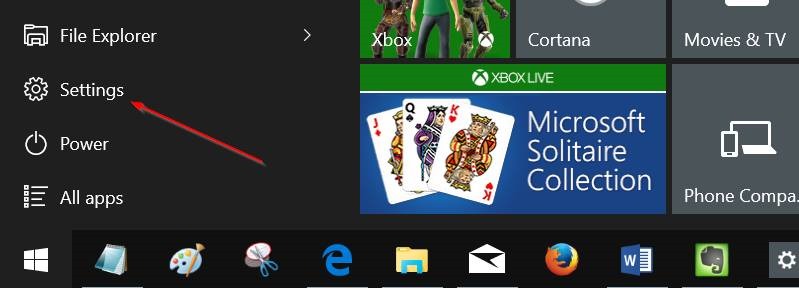
Langkah 1: Buka Settings dengan cara mengklik icon Settings yang ada di Start menu atau dengan cara menekan tombol Windows + I secara bersamaan.
Membuka Settings Windows 10
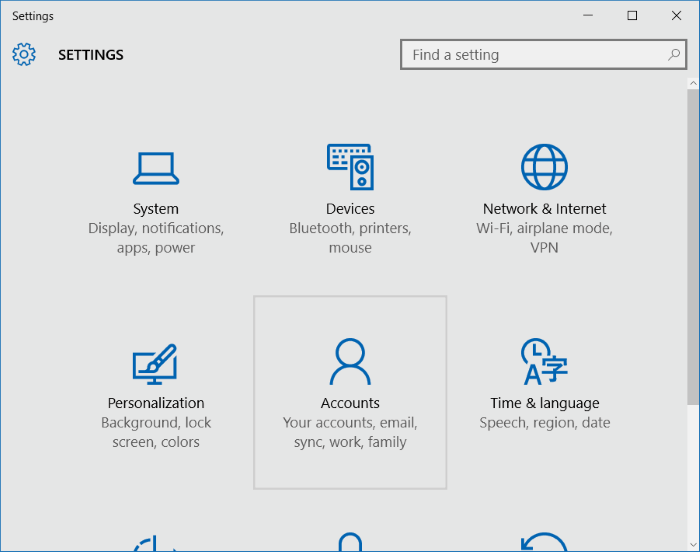
Langkah 2: Klik Accounts (Your accounts, email, sync, work, family).
Accounts (Your accounts, email, sync, work, family)
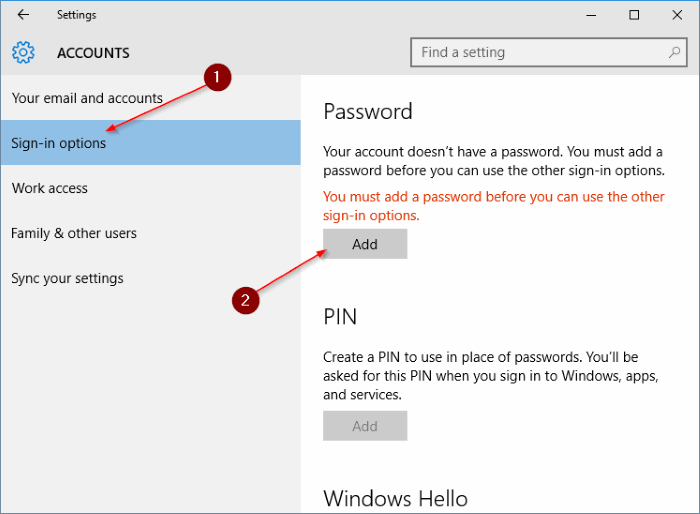
Langkah 3: Klik Sign-in options.
Langkah 4: Pada bagian password, klik tombol Adduntuk membuka dialog pembuatan password.
Menambahkan Password ke Windows 10
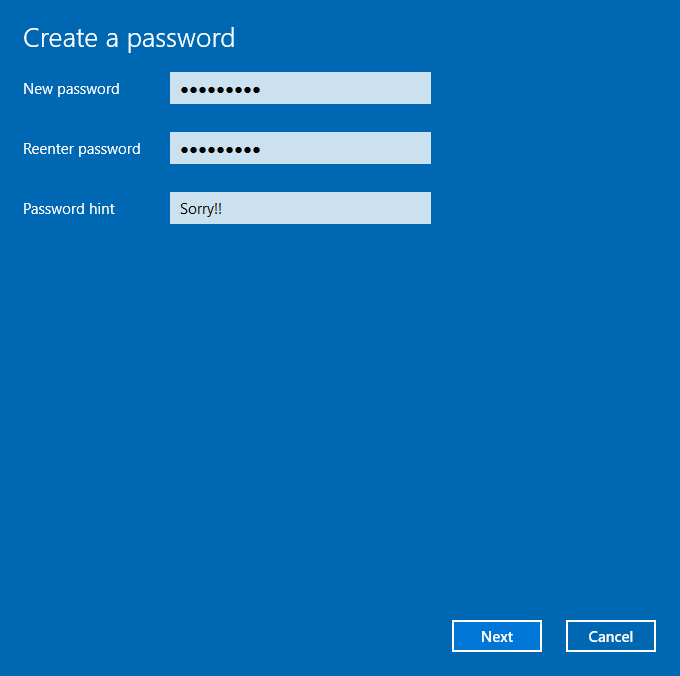
Langkah 5: Masukan password yang Anda inginkan dua kali lalu tekan Enter. Klik Next jika sudah selesai.
Memasukan Password Windows 10
Anda akan melihat pesan seperti gambar di bawah ini dimana Anda perlu mengklik tombol Finish agar kata sandi yang Anda masukan tadi tersimpan di Windows 10 Anda. Setelah sukses menjalankan semua langkah di atas, kini ketika masuk ke Windows Anda akan ditanyai apa password Anda untuk masuk ke desktop.
Cara 2

Mengunci desktop Windows 10 menggunakan Control Panel

Mohon dicatat, ketika Anda menambahkan password ke akun yang tidak sedang Anda gunakan, akun tersebut akan kehilangan file EFS, sertifikat pribadi, dan password yang tersimpan di Internet Explorer atau jaringan.
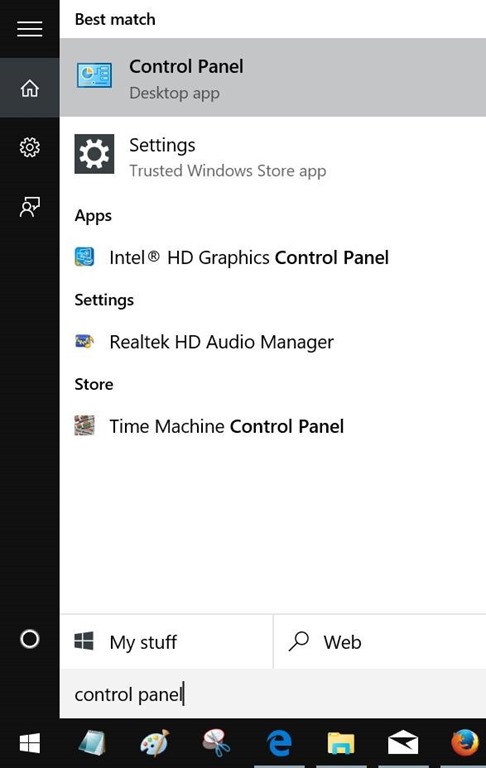
Langkah 1: Ketik Control Panel di Start menu lalu tekan Enter untuk membukanya.
Membuka Control Panel Windows 10
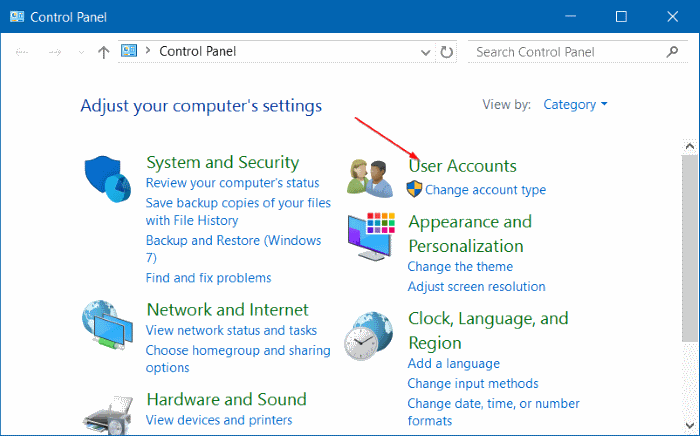
Langkah 2: Klik User Accounts lalu klik User Accounts sekali lagi pada jendela yang muncuk.
Control Panel User Accounts Windows 10
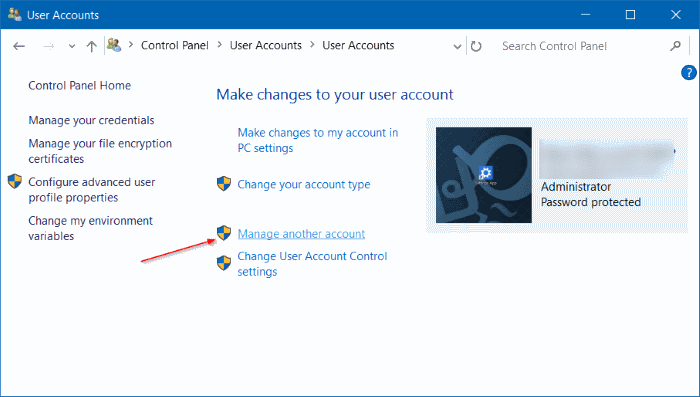
Langkah 3: Klik Manage another account. Klik tombol Yes jika Anda melihat pesan konfirmasi. Jika Anda tidak masuk sebagai Administrator, Anda akan ditanyai password Administrator untuk melanjutkan.
Pengaturan User Accounts Windows 10
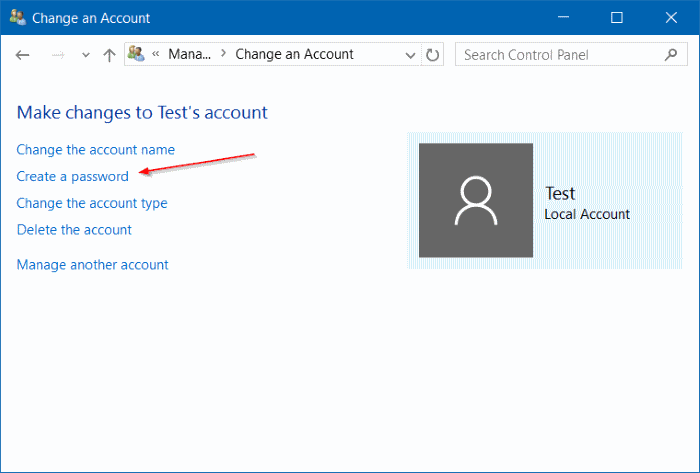
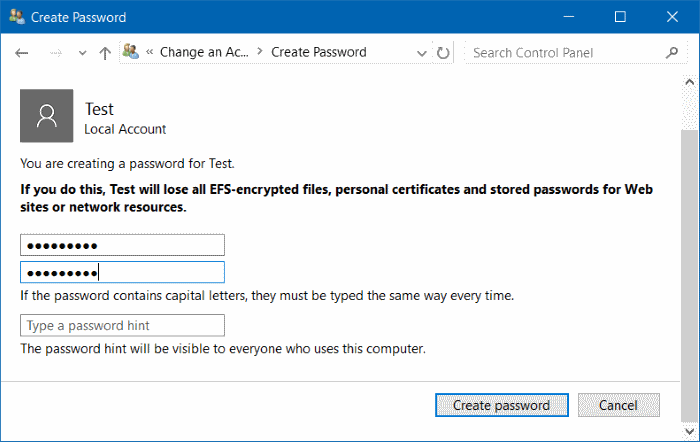
Langkah 4: Klik akun yang ingin Anda lindungi dengan password. Setelah jendela Change an Account terbuka, klik link Create a password.
Create Password Windows 10
Langkah 5: Masukan password dua kali untuk mengkonfirmasi lalu masukan juga password hint (petunjuk password) lalu klik tombol Create password.
Membuat Password di Windows 10
Mudah bukan? Jika ada kesulitan, sampaikan melalui kolom komentar di bawah. AplikasiPC akan membantu Anda sebisa mungkin. 🙂

Cara Mengaktifkan Game Mode di Windows 10

Logo Windows 10

Terdapat berbagai cara untuk mengoptimalkan Windows 10 untuk bermain games. Selain menggunakan aplikasi berbayar, saat ini juga tersedia puluhan aplikasi gratis yang dapat Anda gunakan untuk meningkatkan perfoma games di Windows 10.

Fitur Game Mode di Windows 10

Jika Anda sering memainkan game berat di PC Windows 10, kini Anda dapat meningkatkan kinerja Windows 10 agar game dapat berjalan dengan lebih mulus. Menariknya, Anda tidak perlu menggunakan aplikasi pihak ketiga maupun registry tweaks untuk mencapai hal tersebut.
Semenjak Creators Update dirilis untuk Windows 10, Microsoft menambahkan fitur baru yang dijuluki Game Mode. Ketika diaktifkan, Game Mode akan mengoptimalkan kinerja PC dengan cara meminimalisir penggunaan CPU dan RAM yang seharusnya digunakan oleh aplikasi backgroundmaupun services.
Meskipun Microsoft tidak memberi rincian bagaimana sesungguhnya cara kerja Game Mode pada Windows 10, namun jika dilihat sekilas sepertinya Game Mode berkerja dengan cara mengurangi pemakaian CPU dan RAM pada aplikasi dan service milik sistem. Berbeda dengan aplikasi game booster, pada game booster, ia mengurangi pemakaian RAM dan CPU dengan cara mematikan aplikasi dan service yang berkerja di background.
Fitur Game Mode secara default diatur pada posisi mati, Anda harus mengaktifkannya sebelum dapat digunakan. Berikut adalah cara mengaktifkan Game Mode di Windows 10.

Mengaktifkan Game Mode di Windows 10

Penting: Fitur Game Mode hanya tersedia di Windows 10 build 15019 dan di atasnya (Creators Update). Pastikan cek versi Windows 10 Anda menggunakan winver sebelum mengaktifkan Game Mode.
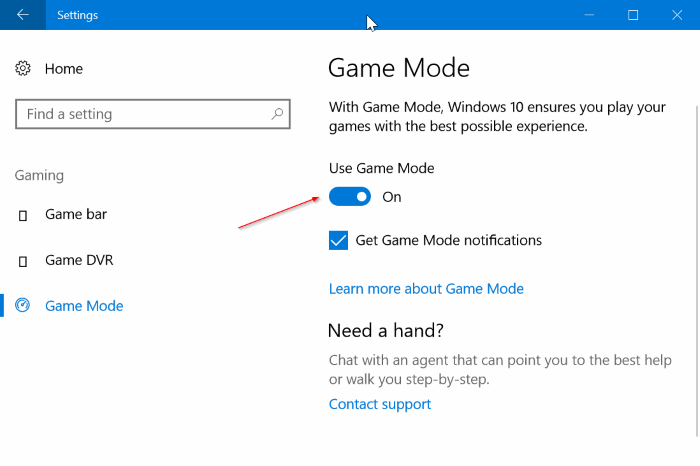
Langkah 1: Buka Settings lalu arahkan ke Gaming=> Game Mode.
Langkah 2: Setelah halaman pengaturan Game Mode terbuka, aktifkan fitur Game Mode (Use Game Mode: On).
Mengaktifkan Game Mode Windows 10

Cara Menggunakan Game Mode

Meskipun Game Mode sudah diaktifkan, namun Game Mode tidak mengenali semua games sehingga kita harus memberitahu Game Mode agar aktif pada game yang sedang kita mainkan. Berikut adalah caranya:
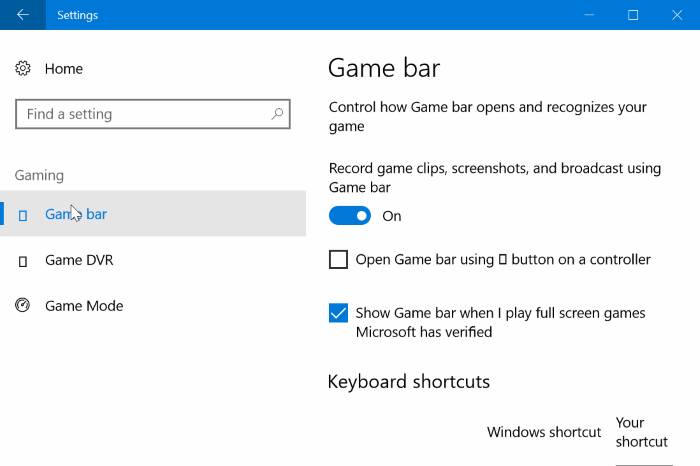
Langkah 1: Jalankan game yang ingin Anda mainkan. Secara bersamaan, tekan logo Windows yang ada di keyboard berbarengan dengan tombol G untuk memunculkan Game bar. Jika Game bar tidak muncul, buka Settings lalu arahkan ke Gaming => Game bar dan aktifkan Record game clips, screenshots, and broadcast using Game bar option.
Game Bar Windows 10
Game Bar Windows 10
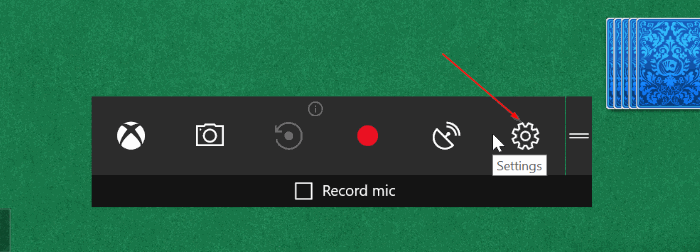
Langkah 2: Setelah Game bar muncul, klik iconSettings untuk membuka pengaturan Game bar.
Game Bar Windows 10
Game Bar Windows 10
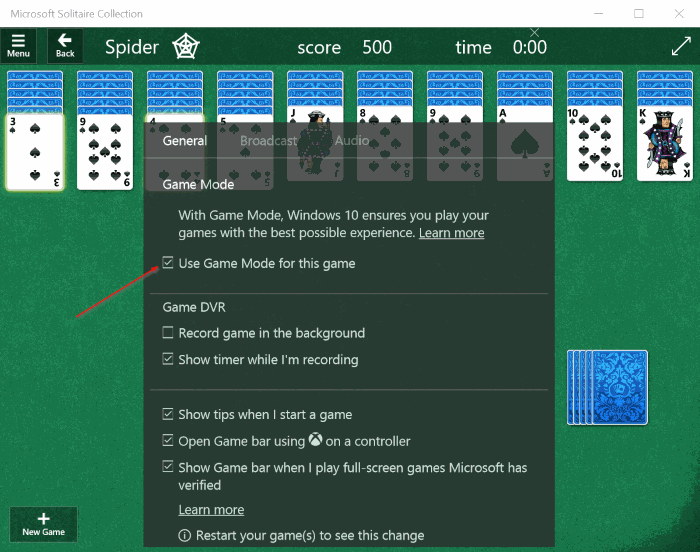
Langkah 3: Di tab General, centang Use game mode for this game untuk mengaktifkan Game Mode pada game yang sedang Anda jalankan.
Game Bar Windows 10
Game Bar Windows 10
Nikmati pengalaman baru bermain games di Windows 10 🙂

Cara Menghilangkan Watermark Test Mode di Windows 10


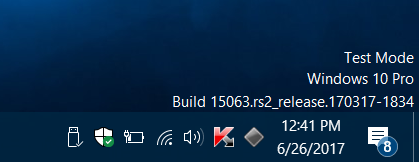
Watermark Test Mode Windows 10

Jika tanda tulisan (watermark) Test Mode muncul di desktop Windows 10 Anda dan Anda tidak mengetahui apa sebabnya, maka Anda sudah datang ke halaman yang tepat. Pada tutorial kali ini AplikasiPC akan membahas mengenai watermarkyang seringkali muncul pada pojok kanan bawah desktop Windows 10. Terdapat beberapa tulisan pada watermark Windows 10 ini diantaranya adalah edisi Windows 10, nomor build serta versi Windows 10, dan tanggal rilis Windows 10 tersebut.
Munculnya watermark Test Mode disebabkan karena pengaturan Test Mode diaktifkan pada Windows 10 Anda entah secara sengaja maupun tidak sengaja. Test Mode di Windows 10 dapat dimatikan dengan sangat mudah menggunakan bcdedit.exe yang dijalankan melalui Command Prompt.
Test Mode merupakan sebuah fitur yang kini tersemat di setiap sistem operasi Windows yang berguna untuk menginstall driver yang belum/tidak resmi menurut Microsoft. Fitur ini sangat berguna ketika kita ingin mencoba berbagai driver di Windows 10.
Setelah Test Mode diaktifkan, Windows akan menampilkan keterangan Test Mode di pojok kanan bawah desktop Anda. Test Mode dapat diaktifkan secara manual maupun otomatis. Contohnya ketika kita menginstall Trackpad++ maka Test Mode akan aktif secara otomatis dan perlu dimatikan secara manual. Jika Anda merasa tidak pernah mengaktifkan Test Mode, ikuti langkah sederhana di bawah ini untuk mematikan Test Mode.

Cara Menghilangkan watermark Test Mode

Catatan: Saat Test Mode dimatikan, semua driver yang tidak/belum disertifikasi oleh Microsoft akan dinonaktifkan sehingga wajar apabila ada beberapa perangkat yang fungsinya menjadi tidak normal atau tidak berjalan sama sekali.
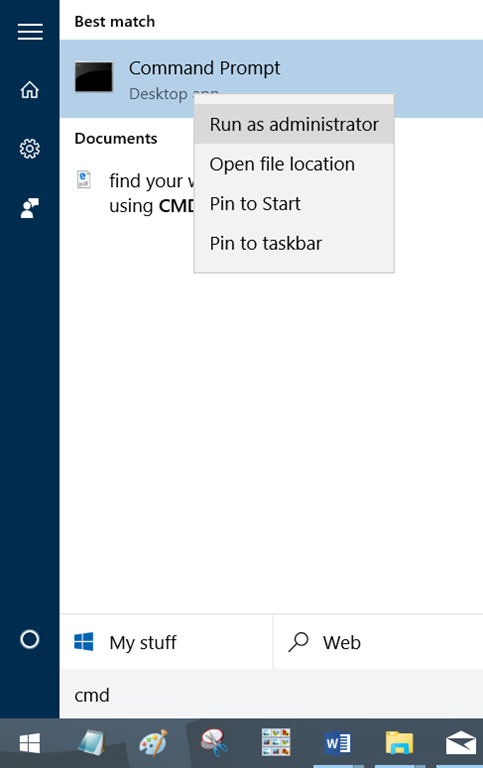
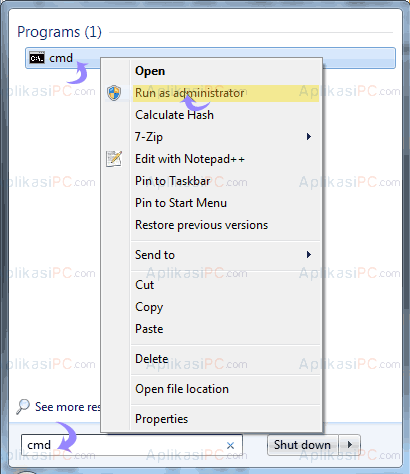
Langkah 1: Pertama-tama, jalankan Command Prompt dengan hak administrator. Caranya, ketik CMD di kolom pencarian yang ada di Start menu lalu klik kanan pada Command Prompt dan pilih opsi Run as administrator. Klik tombol Yes jika peringatan User Account Control muncul.
Membuka Command Prompt Windows 10
Langkah 2: Setelah jendela Command Prompt muncul, jalankan perintah di bawah ini:
Untuk mematikan Test Mode, jalankan perintah ini:
Bcdedit.exe -set TESTSIGNING OFF
Untuk menghidupkan Test Mode, jalankan perintah berikut ini:
Bcdedit.exe -set TESTSIGNING ON
Jika perintah di atas tidak berkerja seperti semestinya, jalankan perintah di bawah ini terlebih dahulu:
Bcdedit.exe -set loadoptions ENABLE_INTEGRITY_CHECKS
Bcdedit.exe -set TESTSIGNING OFF
Selanjutnya tutup jendela Command Prompt dan cek kembali apakah watermark Test Mode masih muncul di desktop Windows 10 Anda. Jika masih, restart komputer Anda terlebih dahulu untuk menerapkan perubahan.

6 Cara Mencegah Virus Menginfeksi Komputer & Flashdisk

Virus Komputer
Virus dalam komputer terbentuk melalui program-program perangkat lunak yang menyebarkan gangguan secara berulang ke dalam perangkat komputer Anda. Secara umum, virus-virus tersebut biasanya dibawa atau masuk melalui alat transfer data yang masuk ke dalam komputer Anda seperti contohnya pada flash disk. Selain dapat menginfeksi komputer atau laptop Anda, virus tersebut juga dapat masuk ke dalam perangkat smartphone atau tablet apabila Anda melakukan aktivitas transfer file atau dokumen ke dalam perangkat tersebut, ataupun virus dapat juga masuk dari jaringan internet. Virus yang masuk menyerang perangkat Anda memang akan banyak merugikan. Serangan virus dapat menyebabkan kerusakan atau mengekspos data pribadi Anda misalnya password atau kata sandi yang Anda gunakan. Serta masih banyak kerugian lainnya yang menjadi akibat komputer atau perangkat gadgetAnda terinfeksi oleh virus. Melihat pada kenyataan yang demikian, sebelum virus-virus tersebut menyerang data pribadi penting Anda, berikut beberapa hal yang dapat Anda lakukan untuk melindungi virus dari data pribadi Anda.

Cara Melindungi Data Pribadi Dari Serangan Virus

1. Berhati-hatilah ketika Anda membuka lampiran email apapun dari ponsel/tablet. Demikian juga ketika Anda bekerja menggunakan perangkat komputer Anda, berhati-hatilah. Jika Anda menerima sebuah email dari seseorang yang bukan termasuk daftar kontak pada email Anda, yang mengindikasikan email tersebut tidak penting atau merupakan sebuah spam, lebih baik jangan membukanya. Lakukan hal yang sama jika Anda menemukan pesan email dengan judul dari pengirim yang mencurigakan.
2. Apabila Anda ingin mendownload aplikasi-aplikasi dari internet, unduhlah hanya aplikasi-aplikasi yang resmi, atau melalui halaman situs resmi. Anda dapat mencari tahu terlebih dahulu mengenai aplikasi apapun yang ingin Anda unduh, agar kemudian tidak sampai salah mengunjungi halaman situs untuk download aplikasi tersebut. Karena jika salah dalam Anda mengunduhnya, akan ada kemungkinan bahwa yang Anda download tersebut sebenarnya berupa virus.
3. Dalam menggunakan fasilitas Bluetooth, terapkan peraturan undiscoverable. Karena terdapat kemungkinan akan ada virus yang melewati koneksi Bluetooth. Jika Anda sedang melakukan koneksi Bluetooth dimana pengaturannya berada pada mode discoverable,virus akan dengan mudah terinfeksi masuk ke dalam perangkat tablet atau smartphone Anda. Perlu Anda ketahui bahwa sekarang beberapa virus jahat dapat mencuri rincian kontak Anda, atau bahkan melumpuhkan telephone Anda.
4. Dalam upaya melindungi perangkat smartphonesiPhones, e-readers dan tablet Anda untuk melindungi virus, Anda dapat mengunduh aplikasi-aplikasi anti-virus. Anda dapat mendownloadnya melalui situs-situs resmi dan terpercaya.
5. Untuk perangkat Android, Anda sebaiknya gunakan program anti-virus yang handal dan benar-benar terpercaya seperti contohnya aplikasi keamanan mobile dari Kaspersky. Dimana aplikasi tersebut sudah jelas dapat melindungi Android Anda dari virus dan spam. Contoh aplikasi lainnya yang dapat menjadi rekomendasi Anda dalam menggunakan palikasi anti-virus antara lain aplikasi Norton Mobile Security dan Bullguard Mobile Security. Aplikasi-aplikasi tersebut akan bekerja melindungi data Anda, bahkan selama terjadi sebuah serangan.
6. Carilah aplikasi anti-virus yang membantu mengamankan informasi pribadi Anda bukan hanya ketika gadget Anda berada di tangan Anda sendiri, namun juga ketika perangkat gadget Anda berada di tangan orang yang tidak bertanggung jawab, orang jail, misalnya karena kejadian pencurian, dan sebagainya. Dengan itu maka informasi Anda akan selalu aman meskipun bukan lagi di tangan Anda.
Demeikian 6 langkah yang dapat Anda lakukan sebagai upaya untuk melindungi perangkat komputer, tablet, telephone, Android, dan perangkat lainnya dari serangan virus dan spam yang merugikan. Kami membuka kolom komentar di bawah ini sebagai sarana agar kita dapat saling berbagi informasi. Semoga artikel ini bermanfaat.

Cara Menginstall Tema Windows 7

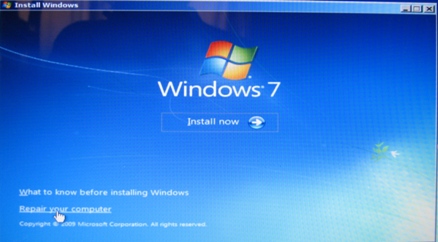
 Install Windows 7

Kali ini saya akan membahas panduan cara menginstal tema Windows 7 dengan benar. Anda dapat menginstal themepacks pada Windows 7 dengan mengklik dua kali pada tema tersebut, tapi untuk tema pihak ke-3 Anda akan harus mengubah file uxtheme.dll Anda dan beberapa file dll lainya.
Cara pertama dan mungkin cara yang termudah untuk menginstal tema Windows 7 adalah dengan menggunakan software bernama Core UXStyle. Software Core UXStyle yang dapat didownload disini.
Software kecil  ini akan menciptakan sebuah proses baru UnsignedThemesSvc.exe yang berjalan di latar belakang atau background dan akan memungkinkan Anda untuk menjalankan tema pihak ke-3 dengan benar.
Setelah Anda merestart Windows 7 Anda, Anda harus memeriksa apakah service Unisgned Themes telah dimulai. Untuk mengeceknya ikuti beberapa petunjuk berikut:
1. Klik Start
2. Masukkan services.msc ke kolom search.
3. Ketik “U” untuk mencari service “Unsigned Themes”
4. Double-klik dan klik Start
5. Jika tidak bisa menemukan file yang ditentukan, Anda harus menginstall ulang software diatas.

Cara Menghilangkan Notifikasi “Windows 7 is nearing the End”

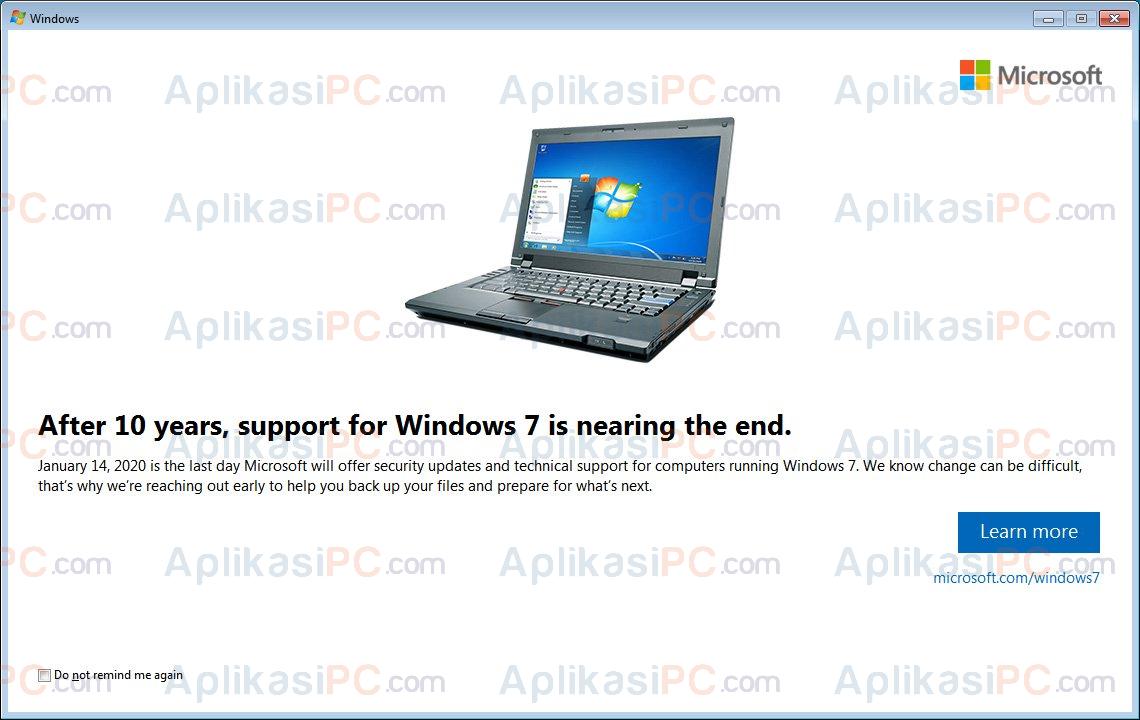
After 10 years, support for Windows 7 is nearing the end.
Microsoft akan mulai menghentikan dukungan untuk Windows 7 pada 14 Januari 2020. Sayangnya, hingga saat ini masih banyak pengguna Windows yang enggan untuk upgrade ke Windows 10 yang merupakan sistem operasi paling baru buatan Microsoft. Saat tulisan ini diterbitkan, Microsoft sudah mulai memberikan pesan yang berupa kotak notifikasi pemberitahuan bahwa Windows 7 akan segera dihentikan dukungannya. Jika Anda berencana akan tetap menggunakan Windows 7 dalam jangka waktu yang lama, berikut adalah salah satu cara untuk menghilangkan pemberitahuan “After 10 years, support for Windows 7 is nearing the end.” yang tiba-tiba muncul.
Pemberitahuan end of support ini muncul beberapa saat setelah menjalankan Windows Update di Windows 7. Saat proses update berjalan, Windows 7 menginstall KB4493132 yang merupakan akar masalah munculnya notifikasi end of support. Jika Anda menerima pemberitahuan tersebut, sebaiknya memang Anda langsung mengupgrade OS komputer Anda ke Windows 10. Tidak hanya tampilan yang lebih menarik, Windows 10 juga dibekali banyak pembaruan keamanan yang dapat menjaga data Anda dengan lebih baik.
Isi dari pemberitahuan di atas adalah:
After 10 years, support for Windows 7 is nearing the end.
January 14, 2020 is the last day Microsoft will offer security updates and technical support for computers running Windows 7. We known can be difficult, that’s why we’re reaching out early to help you backup your files and prepare for what’s next.
Di dalam kotak pemberitahuan tersebut terdapat check box berlabel “Do not remind me again” yang berfungsi untuk mematikan pemberitahuan end of support secara permanen. Namun apabila setelah mencentang kotak tersebut komputer Anda masih menampilkan pemberitahuan secara tiba-tiba, Anda bisa menghapus update KB4493132 melalui Control Panel.
Untuk menghindari KB4493132 agar tidak terinstall di komputer Anda, ikuti langkah di bawah ini:
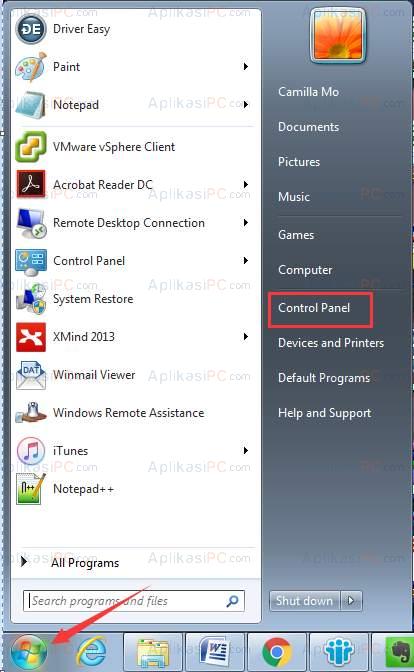
Langkah 1: Buka Control Panel.
Membuka Control Panel di Windows 7
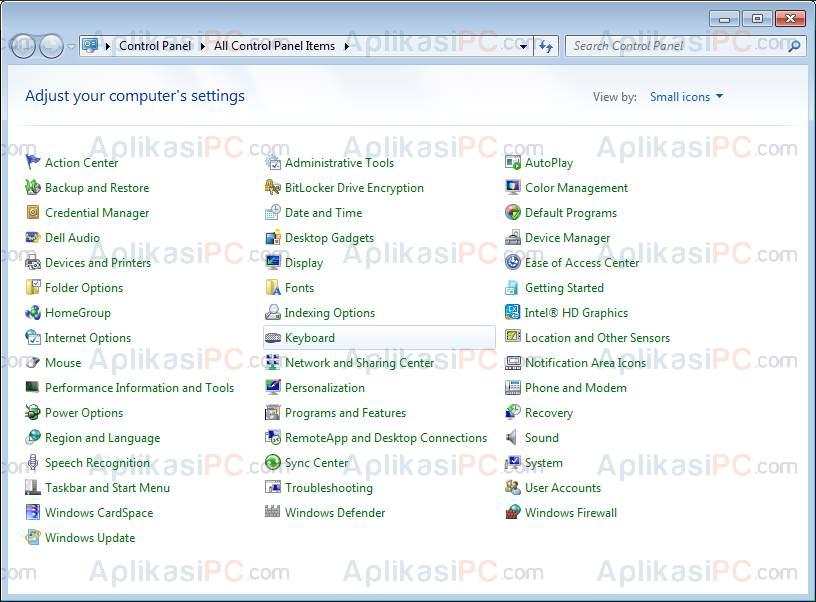
Langkah 2: Tekan tombol Ctrl+F secara bersamaan atau klik kolom pencarian yang ada di kanan atas.
Control Panel Windows 7
Langkah 3: Ketik Windows Update dan buka program tersebut.
Langkah 4: Di Windows Update, pada bagian Select update to install, jika muncul KB4493132 dalam daftar, klik kanan, pilih Hide update.
Sedangkan jika update KB4493132 sudah terlanjur terinstall di komputer Anda, gunakan cara di bawah ini:

Cara hapus update KB4493132 di Windows 10

Langkah 1: Pertama-tama, buka Command Prompt terlebih dahulu dengan hak Administrator.
Command Prompt as Administrator di Windows 7
Langkah 2: Ketik perintah di bawah ini di ikuti dengan Enter setelahnya:
wusa /uninstall /kb:4493132
Selamat! Kini pemberitahuan “After 10 years, support for Windows 7 is nearing the end.” tidak akan muncul lagi. Jika ada kesulitan, sampaikan melalui kolom komentar.

Cara Install Microsoft Office 2010 di Windows XP SP2

Install 2012 XP

Versi terbaru dari Microsoft Office, Microsoft Office 2010, sudah tidak diragukan lagi menjadi suite terbaik untuk Windows. Office 2010 tersedia dalam empat edisi dan kompatibel dengan sistem operasi Windows XP, Vista, Windows 7, Windows Server 2003 dan Windows Server 2008.
Meskipun kompatibel dengan Windows XP, Anda harus menjalankan minimal dengan XP versi 32-bit dengan Service Pack untuk dapat menginstal dan menjalankan Office 2010. Dengan kata sederhana, Office 2010 tidak dapat diinstal pada Windows XP SP1 atau SP2.
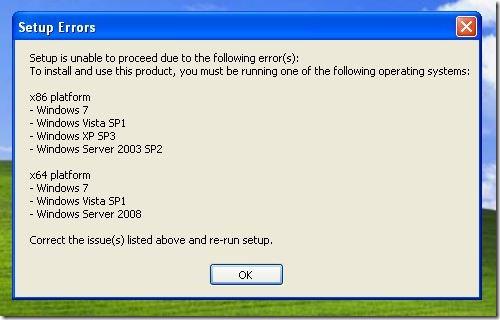
Ketika Anda mencoba untuk menjalankan instalasi Office 2010 pada Windows XP SP1 atau SP2, Anda akan mendapatkan pesan Setup is unable to proceed due to the following error: To install and use this product, you must be running one of the following operating systems: Windows 7, Vista SP1, XP SP3, Server 2003 SP2, Windows 7 (x64), Vista SP1 (x64), Server 2008 x(x64). Correct the issue(s) listed above and re-run the setup message.”
Walaupun men-download dan menginstal Windows XP Service Pack 3 bukanlah sesuatu yang sulit, banyak pengguna Windows XP SP2 masih bertahan karena berbagai alasan. Pengguna Windows XP yang tidak bisa upgrade ke SP3 dan masih ingin menginstal Office 2010 akan senang mengetahui bahwa Office 2010 dapat diinstal di XP SP2 juga dengan beberapa trik. Satu-satunya syarat adalah bahwa Anda harus menjalankan versi XP x86.

Ikuti petunjuk yang diberikan di bawah ini untuk menginstal Office 2010 pada Windows XP SP2 Anda:
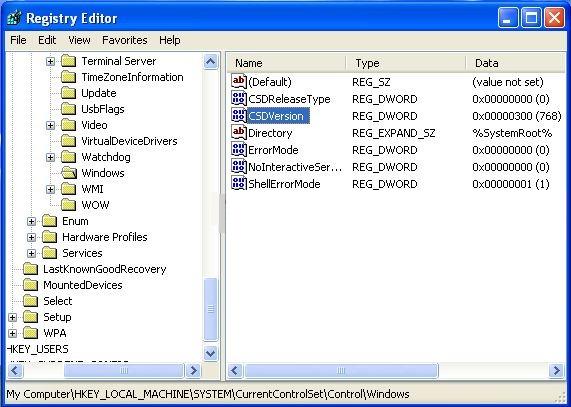
Langkah 1: Buka Registry Editor. Untuk melakukan ini, klik menu Start, klik Run, ketik regedit.exe di kotak dialog Run dan tekan enter.
Langkah 2: Pada Registry editor, pindahkan registri berikut:
HKEY_LOCAL_MACHINESYSTEMCurrentControlSetControlWindows
Langkah 3: Pada sisi kanan, klik dua kali pada CSDVersion dan ubah dari 200 menjadi 300.
Registry Install  Office 2010 SP2
Klik untuk memperbesar
Langkah 4: Tutup Registry editor. Reboot komputer Anda dan jalankan setup Office 2010 untuk memulai instalasi Office 2010. Anda sekarang seharusnya dapat menginstal tanpa masalah apapun. Setelah terinstal, arahkan regedit ke kunci registri yang sama kemudian ubah nilainya kembali ke 200.
Langkah 5: Nikmati Office 2010 dan segala fiturnya

9 WAYS HOW TO MAKE MONEY ONLINE


9 ways how to make money online with a website
Making money online is key to becoming location independent. You may or may not have some strategies in mind already, but it certainly never hurts to gather a few extra ideas, does it? So here are 9 ways how to make money online as location independent entrepreneur.

Note: The only requirement to make money online with these tips is a website. In case you don’t have one yet, here is how to create a website in 2 simple steps.

11 Words Of Wisdom Before You Make Money Online

Before you get all over the place hunting for fame and fortune, I’d quickly like to quote a very wise person here (not myself, for a change):
“Don’t aspire to make a living. Aspire to make a difference.”
Denzel Washington

Please, please take these 11 words to heart when thinking about how to make money online. The world doesn’t need yet another drop shipper sending parcels of useless stuff across the globe in order to make a margin.
The world much rather needs humans that help the planet, make positive contributions. Game changers. Something like planting trees when searching the web or when booking a bed.
Be one of the good guys. Please.
Thank you.
Note: Apart from freelancing, most website monetization strategies only work properly once you do generate a fair amount of traffic. To do so, you will need to offer interesting content first. And then market it. (Here are 10 completely free marketing strategies for startups and SMEs.) Please refrain from creating websites just to make money online. There’s enough nonsense on the web already.

Freelancing

The most popular option amongst budding location independent entrepreneurs is freelancing. Whether you take over clients from your last job or jet off into an entirely new field, freelancing is an excellent option to earn money online.
Whatever your skills are, chances are you can beat official market rates in your home country thanks to geoarbitrage. However, never solely compete on price. Since there are tens of thousands of freelancers out there that can stillbeat you on price, no matter where you live, make sure to never engage in price wars. If a client looks for the cheapest solution, look for a different client.
Be aware that due to all this competition it will take some time and serious effort to score your first jobs. However, once you got the first clients hooked, you can cooperate on long-term projects, gather references and slowly increase your rates.
To learn more about successful freelancing and why you need both a website and a (free) email marketing system for it, we recommend reading How to become a freelancer and crush the competition.
Kaiser‘s comment: Freelancing is certainly a great option for beginners to make money online. It will take some time to score the first jobs, but many digital nomads rely on their freelancing income long-term. While some nomads do charge three-digit rates per hour, average earnings are between 20-50 USD/hr. More than enough for a comfortable living in a low-cost country.

Pay-Per-Click (PPC) Advertising Like Google AdSense

As soon as you have a website, it does sound like a logical next step to plaster it with Google or Bing Ads to earn money from your websites visitors. Once a website visitor clicks the ad you display, you get compensated – which is why this method is known as pay-per-click advertising (PPC).
While PPC does make sense for some, it doesn’t make sense for others. In case you create a niche website purely to generate money, you might as well experiment with PPC. (I hope you don’t. Remember what Denzel said?)
For your ‘main project’, the website you’re wholeheartedly dedicated to, I generally advise against using PPC for three main reasons:

PPC Annoys Website Visitors

Firstly, PPC usually annoys most website visitors. If you annoy your visitors, they won’t come back for more. They’ll go elsewhere.

PPC Won’t Make You Rich

Secondly, PPC only generates very few Cents. Once you have a fully-grown website that ranks in Google’s top spots, you can generate a few hundred dollars a month with it. Please be aware that that is a long way to go.
For a very first idea of how much (or how little) you might make with Google AdSense, try the Google AdSense Calculator.

PPC Pushes Your Website Visitors To Other Sites

Thirdly, PPC makes your website visitors leave your site and guides them to the competition. These days all ads are content relevant. So if you are advertising your copywriting skills, ads from professional copywriters and outsourcing websites will show up. Chances are you’ll lose your prospect to the competition – in exchange for mere Cents.
I’m not entirely against PPC, and have myself made some money with it in the past. Please just bear above mentioned arguments in mind when deciding on your monetization strategy.
Kaiser‘s comment: Despite generating completely passive income, you may want to examine closely whether PPC is suitable for you or not. If it is, great, if not, try some of the other options enlisted here.

Display Related Posts

A fairly easy way to make money with your website is to offer the space below your posts as ad space. Companies like Outbraincompensate you for every click from your website visitors.
Same as PPC, the advertised posts are (usually) content related. And yes, clicking the posts apparently leads visitors away from your website. And, as with PPC, earnings are not huge.
However, since these ads only appear at the very end of each post, you have plenty of time to grab your visitors’ attention and link to your other posts from within the post they are currently reading. Which hopefully results in them opening a couple of new tabs with other interesting articles of yours. Then they may as well click the Outbrain ad at the end of the article they originally read and pocket you a few Cents.
The setup is quite easy. You simply copy some code into your WordPress backend and let Outbrain do the rest.
Kaiser‘s comment: In case you want to monetize your website in a simple way, start by experimenting with Outbrain. If it doesn’t work, you can always delete the code snippet later.

Accept Sponsored Posts

Once you do see some traffic come in, you may get offers from other companies trying to advertise on your website. To advertise as unobtrusively as possible, they may offer to write a post for you (or ask you to write it), usually ‘reviewing’ their own products very positively, and pay you to post it.
This is called native advertising, and, if done correctly, can work extremely well. After all, if your website visitors love you for writing about a certain topic, and they find a well-written ‘review’ on a product related to that topic, everybody wins: Your audience discovers a cool new product, the advertising company finds new clients, and you generated new content and got paid for it.
However, if done wrong, you will lose your readers’ trust very quickly. Poorly written native advertising looks super scammy, and products unrelated to your website shouldn’t be on there anyway. So make sure you do your homework and are super selective before accepting any sponsored posts!
Kaiser‘s comment: While it can be attractive, you need to exercise some caution. Since most companies only pay for native advertising on highly trafficked websites, sponsored posts might not be for you for the near future anyway. But certainly an option to bear in mind down the road.

Affiliate Marketing

Affiliate marketing is the art of getting paid for advertising other people’s products. It is extremely famous amongst location independent entrepreneurs, since it is fairly easy to set up, and usually entirely risk-free. Since most affiliate programs are free to join, you can only make money, but not lose anything.
Despite sounding absolutely tempting, we highly recommend to not dive head first into affiliate marketing when you are just starting out. Few things are worse than a website clearly still under construction that is already plastered with affiliate links. You will lose website visitors and their trust a lot quicker than they could potentially click your links.
Once you are up and running, and do see some first traffic come through, affiliate marketing can be an excellent way to build up a passive income stream. To learn more about affiliate marketing, how to get started and why you shouldn’t rely on it too heavily, read The Top 5 Best Affiliate Programs For Beginners.
Kaiser‘s comment: While affiliate marketing is the very first monetization strategy most wannabe location independent entrepreneurs think of, we recommend holding your horses for a couple of months to generate content, build up trust and properly stress-test all products and programs you plan to promote. You can still get started once you are little more comfortable with the amazing world of website monetization.

Create And Sell Your Own Product

Clearly one of the best and most lucrative monetization strategiesis to create and sell your own product. Apart from physical products you can make money online with digital products. Think e-books, online courses, software and tons of other ideas.
The beauty of digital products is that you only need to create them once, and can sell them as often as you like. Also, since you don’t have to worry about shipping, you can sell worldwide without any hassle. Contrary to affiliate marketing, you have full control over pricing and other conditions.
The downside is that it does take a long time to build up trust and then create a valuable product that people are actually willing to pay for. In a world where most things can be had online for free, assembling a loyal audience and then convincing people that your product is worth forking over some cash is an exercise usually mastered by more seasoned entrepreneurs only.
In case you decide to create a physical product, crowdfunding may lead you into the light. Should you need inspiration from a wonderful success story, read how Adrian the Canadian created Lifepack.
Kaiser‘s comment: While certainly an exercise for advanced location independent entrepreneurs, you should definitely bear creating and selling your own product in mind. It is how most location independent entrepreneurs finally hack passive income.

Once you offer amazing content to a thriving community, you may want to think about privatizing some of the content. Create a paid membership site and offer certain content only to paying members.
I never created paid membership sites myself. But I gathered a lot of positive feedback from location independent entrepreneurs who did. The community you create can deliver valuable ideas, and since membership fees are often paid monthly or yearly you generate a recurring passive income stream.
Kaiser‘s comment: Again, certainly rather for experienced location independent entrepreneurs with a large existing fan base as well as information and insights that are worth paying for. Then it’s a great way to build a community from which you can profit yourself. Despite the membership fees members come up with sensational ideas at times. Use them to create more terrific content!

Dropshipping / Amazon FBA

Dropshipping, in its simplest form, includes working with Amazon FBA. Alternatively, build an online store with Shopify, then buy products in cheap countries to sell them in expensive countries. Usually the drop shipper never sees nor touches the products she sells.
Thanks to the rise of Alibaba this monetization model has become quite popular over the past years. If handled correctly, it can generate quite a bit of money. Be aware that setting things up can take a while. Especially when properly researching a good product and taking legal aspects into account (which you definitely should).
Be aware that there is loads of competition out there. Not only are you up against thousands of other drop shippers, but you are also taking on Amazon and Alibaba themselves. In the end, the best marketing strategy wins.
As newcomer, you may want to start up with monetizing your own niche website first to gain that marketing knowledge. Then test your skills with this potentially lucrative business model.
Kaiser‘s comment: Get started with other monetization models first, build your own website and learn. Then come back to re-visit the option of dropshipping.

Accept Donations

Accepting donations is for sure not the very first monetization strategy that location independent entrepreneurs adopt. However, in case you deliver outstanding content for free, you may as well ask people to support your hard work (and enviable lifestyle).
Be aware that this only works if you are really standing out from the crowd. Most people prefer not to donate. Your audience must be pretty huge in order to generate enough income from donations.
Kaiser‘s comment: Accepting donations can be a fun side gig for some, but very few rely on it solely.

Other Website Monetization Strategies

There are of course loads of other strategies out there on how to make money online with your website. However, plenty of them are scams or simply entirely unsuitable for budding location independent entrepreneurs, so I decided to only select the above few.
In case you have outstanding success with other website monetization models, please leave a comment below or inspire our cool Facebook community.